CAV-OK
Aviation weather for iPhone and iPad that turns METAR observations and TAF forecasts into a regional picture pilots can read at a glance.

How to use the app · Widgets · Siri and Shortcuts · Airport downloads
Weather as a region, not a list
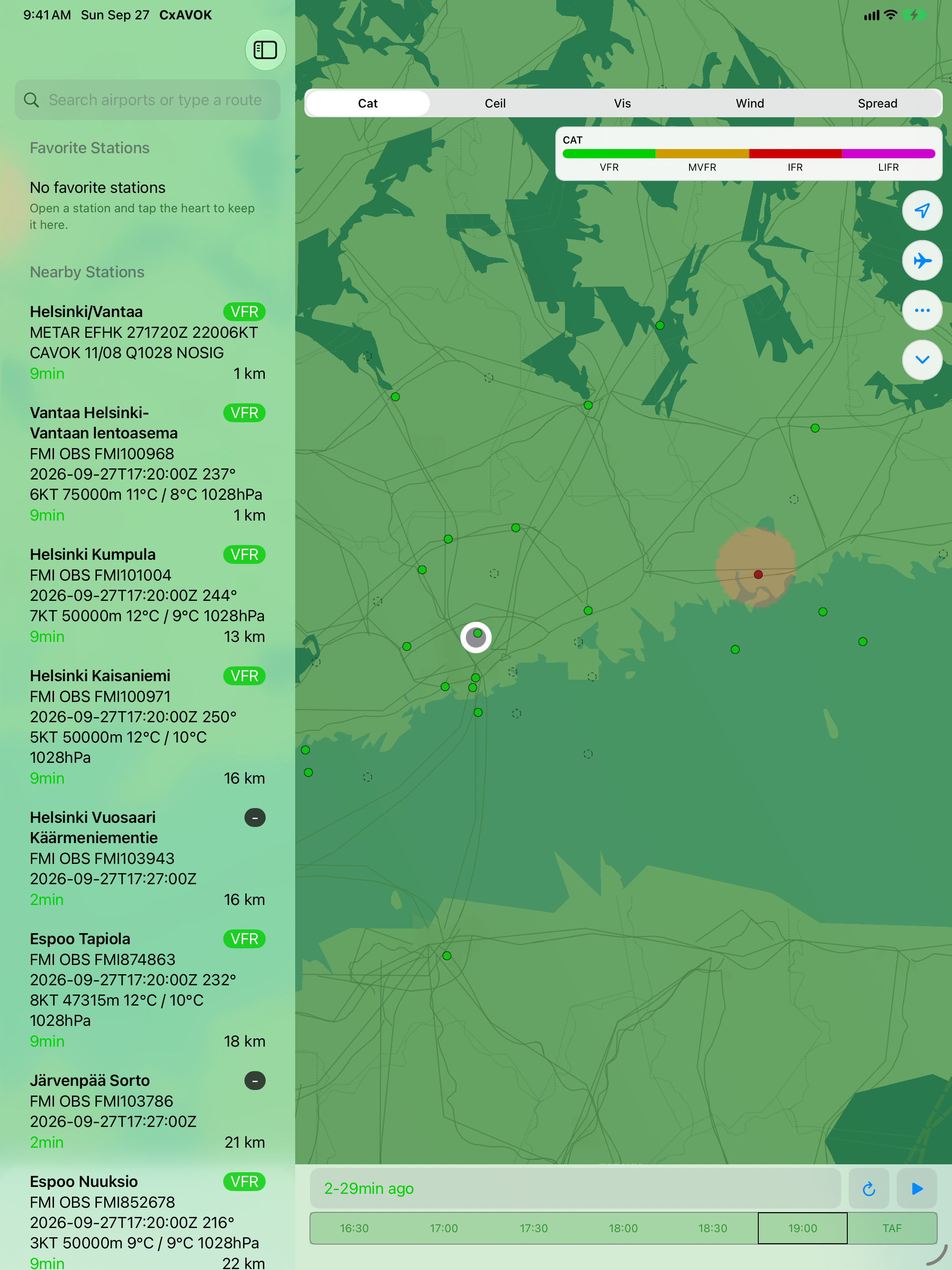
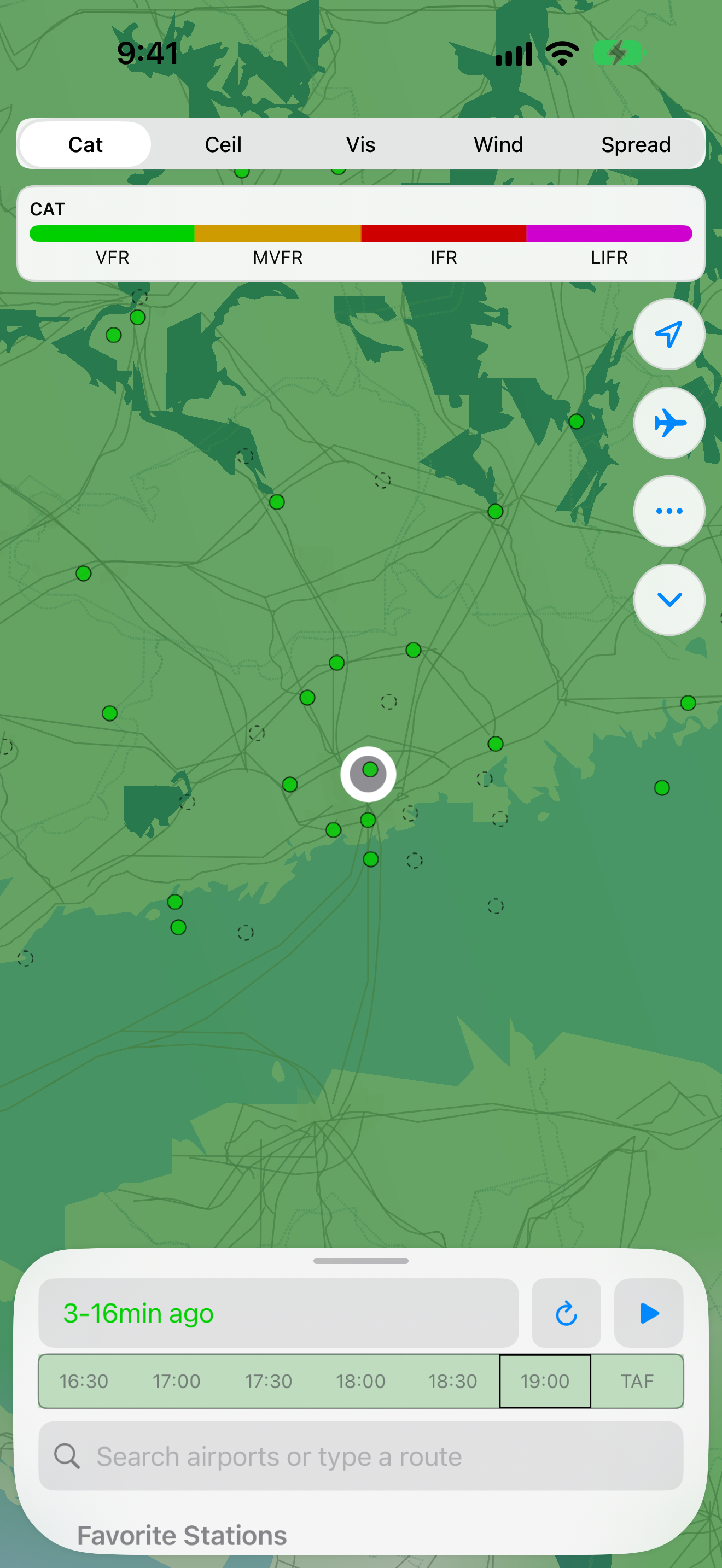
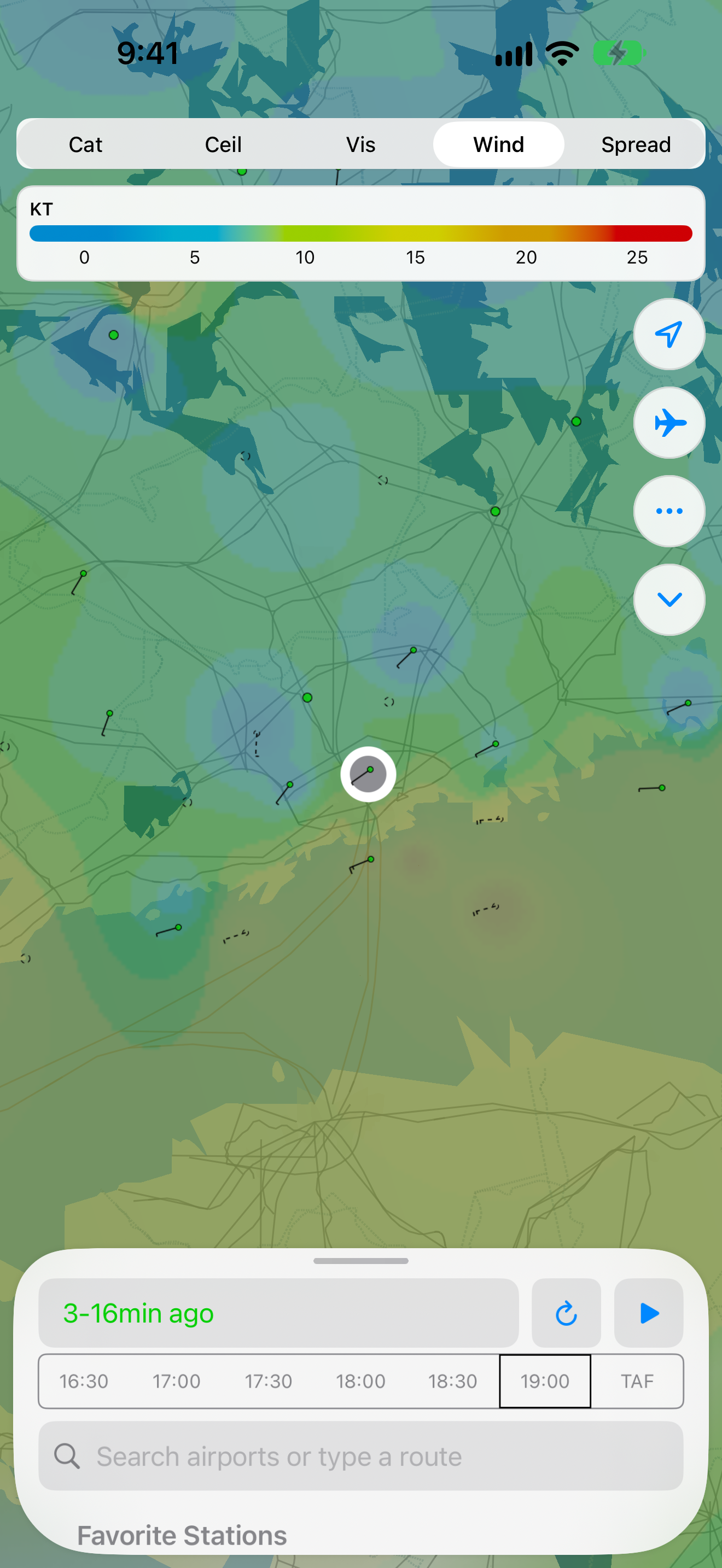
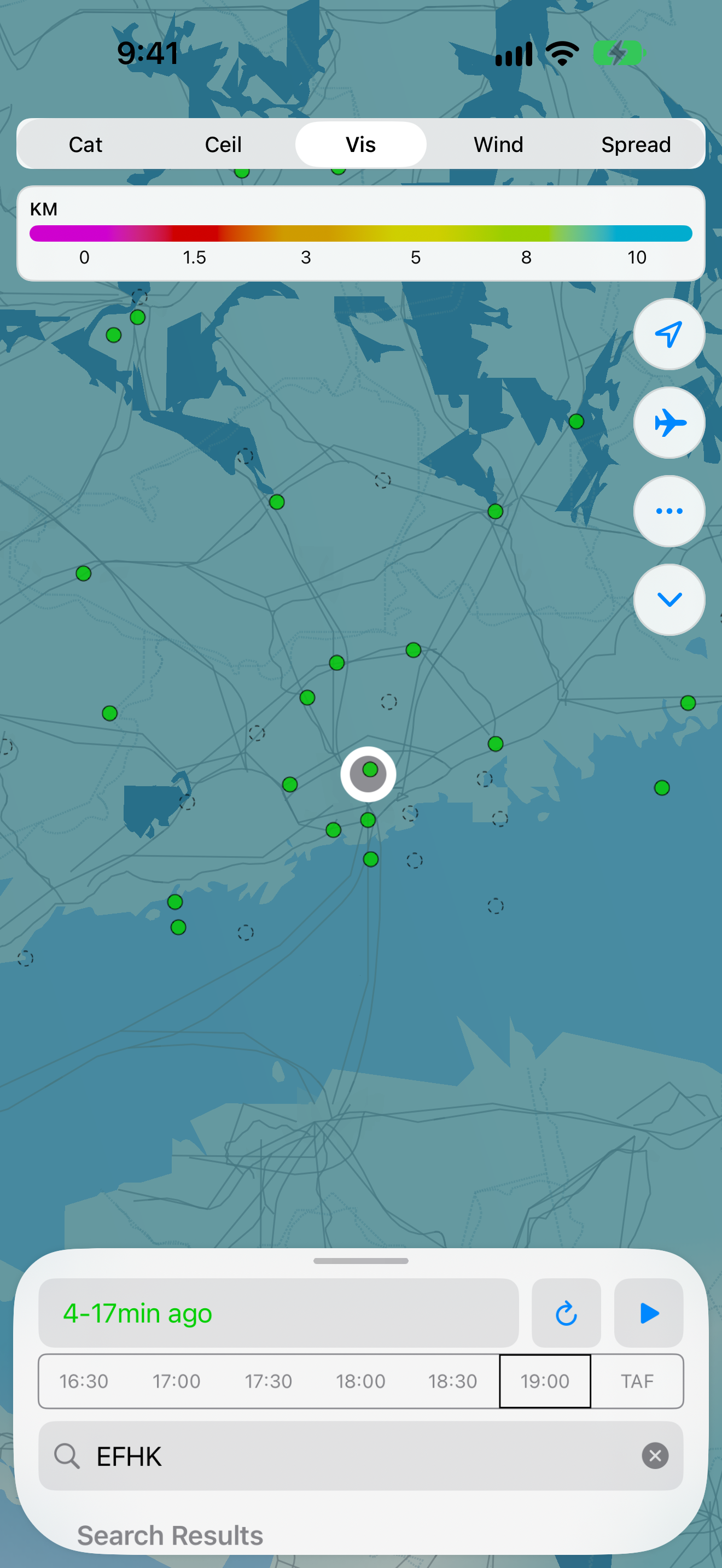
METAR and TAF reports are published one station at a time, while a pilot’s decision spans a route or a region. CAV-OK turns those point observations into an operational map. Flight category, ceiling, visibility, wind, and temperature-dew-point spread can be viewed across every reporting station inside a region the pilot centres and sizes.
The map remains useful when connectivity does not. A global basemap ships with the app, the most recently fetched weather remains readable offline, and stale or unavailable data is identified instead of being presented as current.
From overview to evidence
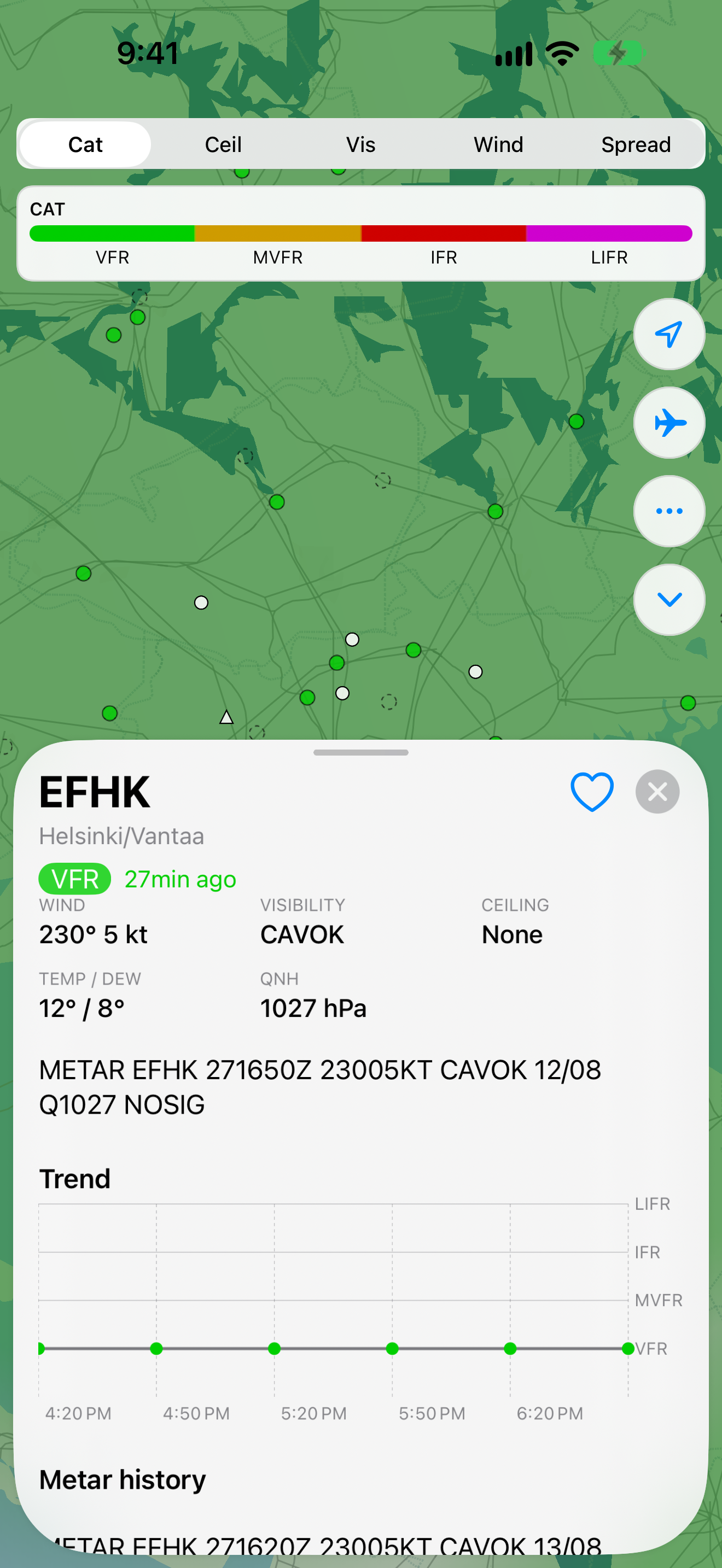
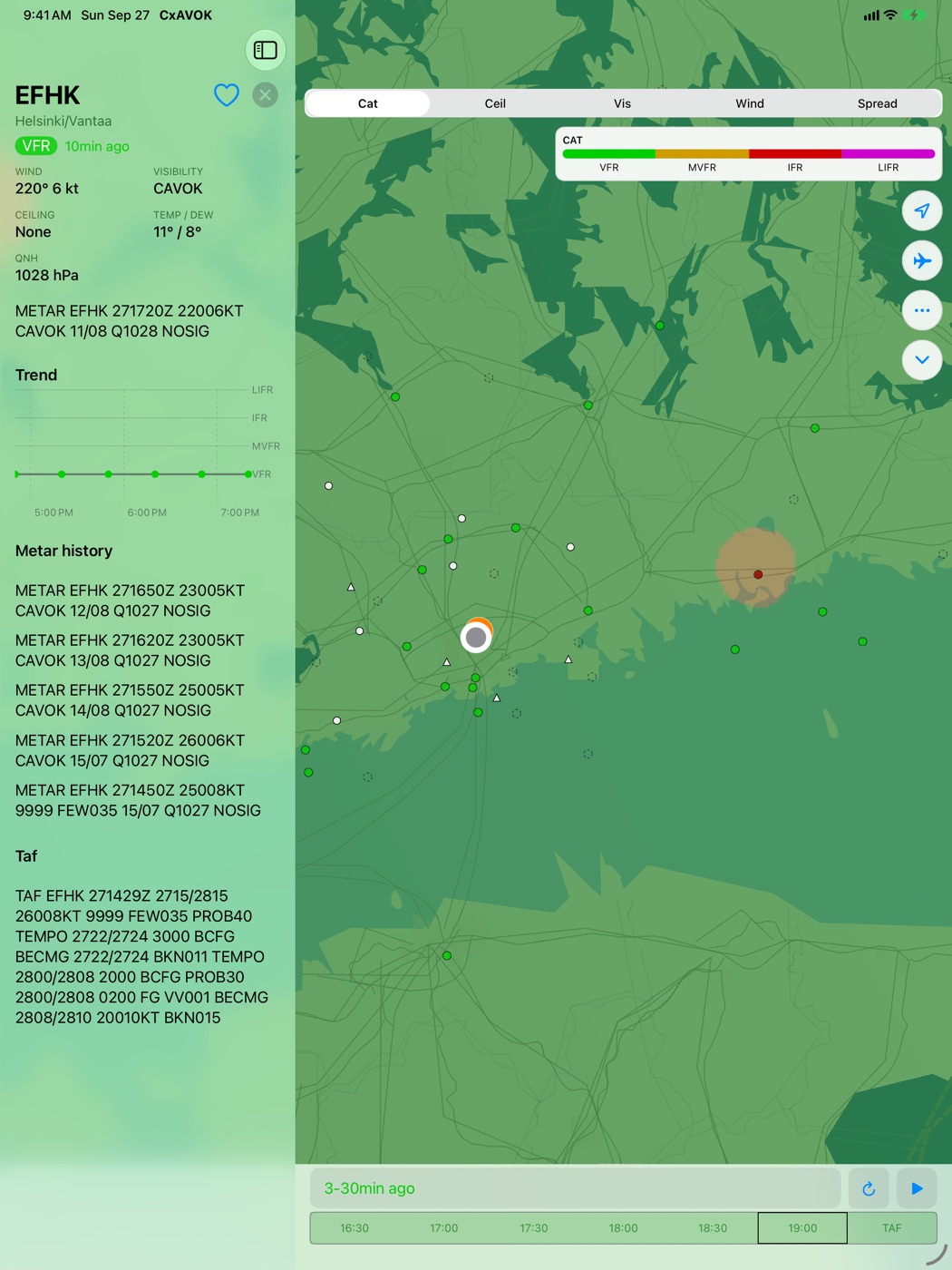
The timeline moves through recent observations and into the TAF forecast. A station opens into decoded conditions, the raw METAR, observation history, and a trend chart. Routes can be entered as airports, navaids, or US fixes, then drawn as great-circle tracks with nearby reporting stations ordered in flight sequence.
See it in use
New in version 1.1
METAR widgets bring station conditions to the Home Screen and Lock Screen, and a Favorites widget compares saved stations. App Intents let Siri and Shortcuts report station weather, find the nearest VFR field, estimate runway crosswind, or open a station in the app. Widgets and Siri require version 1.1 or later; the release notes in the app repository mark that version as awaiting upload.
Airport reference data is now an optional download. Choose Download or Cancel when asked, and use Settings → Airport Data → Download Data whenever you are ready. The bundled map and airport points remain available if you skip it.
How to use CAV-OK
CAV-OK appears as CxAVOK on your device. The current app requires an iPhone or iPad with iOS or iPadOS 26 or later.
Get started
- Open the app and answer Download airport data? Choose Download to fetch about 20 MB of airports, runways, frequencies, and navaids from OurAirports, or Cancel to continue with the bundled data
- If you cancel, dismiss the Download later reminder with OK
- Allow location to centre the weather region and sort nearby stations by distance, or place the region yourself
- Open More options (•••) → Weather Region to set the centre and radius with the minus and plus controls, or use Center On My Location
- Start with a region of about 300-500 km and select Cat to see flight categories across the reporting stations
Weather is downloaded for the selected region. Larger regions take longer to load and contain more stations.
Read the map and timeline
| Overlay | What it shows | Units |
|---|---|---|
| Cat | Flight category: VFR, MVFR, IFR, LIFR | Category colours |
| Ceil | Lowest broken or overcast cloud layer | Hundreds of feet; 005 means 500 ft |
| Vis | Visibility | Kilometres with Metric units |
| Wind | Wind speed and station wind barbs | Knots |
| Spread | Estimated cloud base from temperature minus dew point | Hundreds of feet |
Use the legend below the overlay picker to read the colours. The wash between stations is an estimate from nearby reports. On the Wind overlay, a half barb means 5 kt, a full barb 10 kt, and a pennant 50 kt.
Pinch to zoom and drag to pan. Center on my location returns to your position. Follow aircraft keeps the map centred as you move; panning stops following.
The bottom panel contains half-hour observation slots. Drag across them to scrub, press play to animate, or choose TAF for the forecast. If the panel is hidden, tap the chevron on the right edge of the map. Check the report age before reading conditions and tap Refresh for the latest reports. A patchy newest slot usually means some stations have not reported yet; move one slot to the left.
Inspect a station and save favorites
Tap a station marker or a list entry for decoded wind, gusts, visibility, ceiling, temperature, dew point, and QNH. The details include the raw METAR, a flight-category trend, report history, and TAF. Touch and hold the raw report to copy it. Tap the heart to save the station.
Favorite Stations lists saved stations. Nearby Stations lists reports within 100 km, closest first. When the closest field is not VFR, Nearest VFR suggests a nearby field that is. An arrow beside a station shows whether its category improved or worsened since the previous report.
Search for airports and build a route
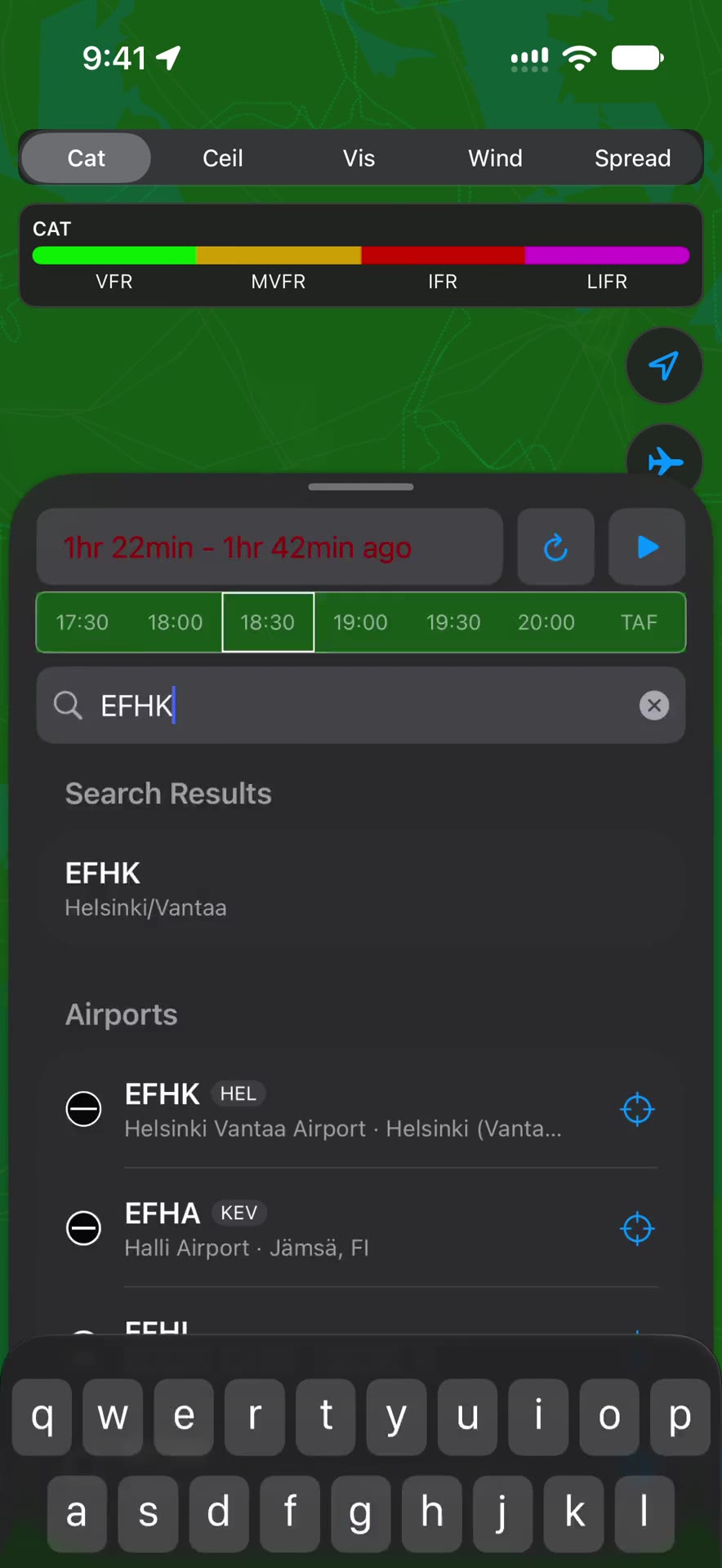
Type an airport code or name, such as EFHK or Helsinki, in the bottom
panel’s search field. Search includes weather stations and airports without
reports. Choosing an airport moves the weather region there.
Enter two or more waypoint codes, such as EFHK EETN or EFHK-EETN, to draw
a great-circle route and list reporting stations along it in flight order.
Routes accept airports, navaids, and US FAA fixes. European en-route fixes
are not included in the app’s openly licensed reference data.
Widgets
Version 1.1 adds two widgets. Open the app and load weather before adding them; they show the app’s last downloaded reports and update when it refreshes.
| Widget | Sizes | What it shows |
|---|---|---|
| METAR | Home Screen: small and medium | Station category, report age, and conditions; medium also shows the raw METAR |
| METAR | Lock Screen: circular, rectangular, and inline | Compact station weather; the fields depend on the size |
| Favorites | Home Screen: medium and large | Saved stations with category, wind, and report age |
- Touch and hold an empty area of the Home Screen, then choose Edit → Add Widget
- Search for CxAVOK, choose METAR or Favorites, select a size, and tap Add Widget
- For METAR, touch and hold the widget, choose Edit Widget → Station, and select a station; favorites appear first
For the Lock Screen, touch and hold it, choose Customize → Lock Screen, tap the widget area, and add CxAVOK. Tap the widget in the editor to choose its station separately from the Home Screen widget. Tapping a station widget opens its details in the app.
Siri and Shortcuts
Version 1.1 exposes four App Intents in Shortcuts, with Siri phrases for each:
| Action | Example Siri request | Result |
|---|---|---|
| Station Weather | “Weather at EFHK in CxAVOK” | Decoded conditions, category, and report age, spoken and shown on a card |
| Nearest VFR Field | “Nearest VFR field in CxAVOK” | A VFR field within 100 km of the last position the app knew |
| Crosswind | “Crosswind at EFHK in CxAVOK” | Estimated headwind or tailwind and crosswind, including gusts |
| Open Station | “Open EFHK in CxAVOK” | Opens that station’s details |
In Shortcuts, add a CxAVOK action and choose its station. The Crosswind
action can take a runway end such as 22 or 04L; leave it empty to check
every runway. You can also use the actions through Spotlight or assign a
shortcut to the Action button.
Station Weather and Crosswind try to fetch a fresh report when the stored one is at least 30 minutes old. If the network is unavailable, they can use the stored report and state its age. Nearest VFR uses stored weather and the last known location, so open the app to update both first. Crosswind requires runway data from the airport download.
Crosswind is an estimate: runway numbers represent magnetic headings while METAR wind is true, and the reported wind may differ from conditions on final.
Airport data and settings
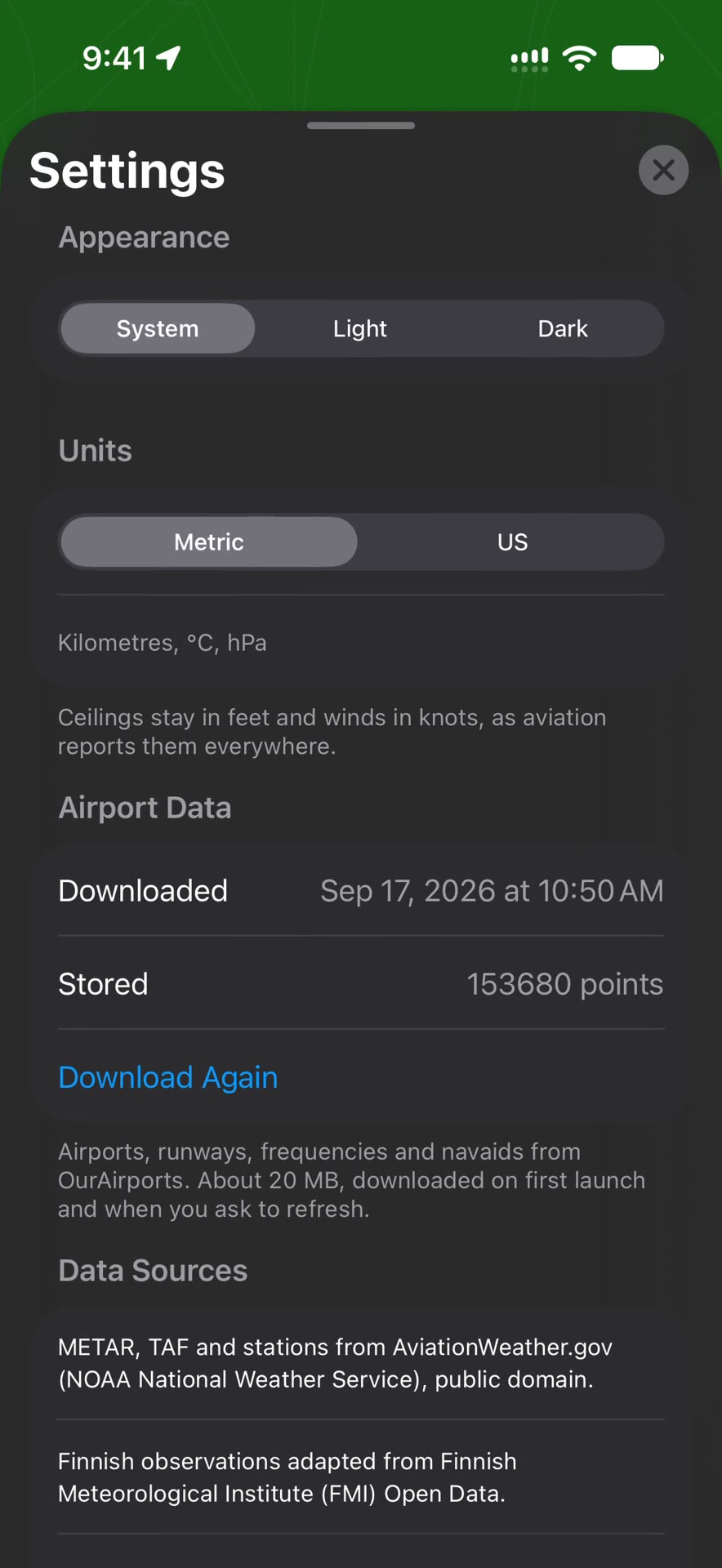
Open More options (•••) → Settings → Airport Data. The Downloaded date and Stored count show what is on the device. If you skipped the initial download, tap Download Data. After a completed download, the button becomes Download Again. Both ask you to confirm with Download or Cancel before starting. A progress indicator appears during download and import.
Settings also lets you choose System, Light, or Dark appearance and Metric or US units. Ceilings stay in feet and winds in knots. Data Sources lists the providers and licences. More options → Map Detail lets you hide terrain, roads, rivers, urban areas, place names, state borders, or latitude lines.
Prepare for offline use
Load your weather region while connected and download the airport reference data if you need runway details. The basemap ships with the app, and the last downloaded weather remains readable offline. Check every report’s age: stored observations do not become current just because the map still draws.
If a service cannot be reached, the app retains the weather it already has. If a widget says Open CxAVOK to load weather, open the app and refresh the region. Areas far from reporting stations fade out rather than showing unsupported weather estimates.
Interpolating the regional heatmap
CAV-OK uses Shepard inverse-distance weighting to estimate a value at each raster pixel from the surrounding stations.
Shepard inverse-distance weighting
Here, is the pixel being rendered, is station , and is their distance in the heatmap raster. The station’s observed value is . is one pixel beyond the farthest station, which keeps every weight finite, and prevents division by zero. Squaring the weight makes nearby stations influence the pixel much more strongly than distant ones. If a pixel lands exactly on a station, the app uses that station’s value directly.
The interpolated number is then mapped through the selected scale. Continuous measurements use colour ramps. Flight categories use four flat colour bands so the map does not imply categories between VFR, MVFR, IFR, and LIFR.
Fading where evidence runs out
Interpolation should not colour an unlimited area when the nearest report is far away. The overlay therefore fades according to the nearest station.
Distance-based opacity
is the pixel opacity, is the distance to the nearest
station, and is the configured station radius in pixels. Opacity stays at
55 percent until distance , fades linearly after that point, and reaches
zero at . clip prevents opacity from falling below zero or exceeding the
maximum. The visual boundary therefore communicates where local observations
stop supporting the regional estimate.
Turning ceiling and visibility into flight category
The category overlay uses the worse of ceiling and visibility. Let be the severity implied by ceiling in feet and the severity implied by visibility in metres.
Flight-category severity
| Category | Severity | Ceiling | Visibility |
|---|---|---|---|
| VFR | 1 | above 3,000 ft | above 5 statute miles |
| MVFR | 2 | 1,000 to 3,000 ft | 3 to 5 statute miles |
| IFR | 3 | 500 to 999 ft | 1 to under 3 statute miles |
| LIFR | 4 | below 500 ft | below 1 statute mile |
The maximum selects the more restrictive measurement. For example, a high ceiling cannot make a station VFR when visibility is IFR. A missing measurement produces no category rather than treating absent evidence as good weather. In the implementation, 1, 3, and 5 statute miles are stored as 1,609, 4,828, and 8,047 metres.
Estimating cloud base from the spread
When temperature and dew point are available, their spread provides a rough lifted-condensation-level estimate.
Temperature-dew-point spread
is surface temperature in degrees Celsius, is dew point in degrees Celsius, and is the estimated cloud base in feet above ground level. Each degree of spread adds roughly 400 ft. This is a situational estimate, not a replacement for a reported ceiling or an official weather briefing.
Measuring weather along a curved Earth
A long flight leg is not a straight line in latitude and longitude. CAV-OK uses spherical geometry to decide which stations lie inside a 50 km route corridor.
Great-circle cross-track distance
is Earth’s mean radius, is the angular distance from the leg’s start to the station, is the initial bearing from the start to the station, and is the initial bearing of the planned leg. The absolute value is the shortest sideways distance to the great-circle track. The app also computes along-track distance, clamps it to the leg endpoints, and accumulates it across legs so stations appear in the order the aircraft reaches them.
Built for situational awareness
CAV-OK combines live AviationWeather.gov METAR and TAF data with Finnish Meteorological Institute observations, a bundled airport and navigation database sourced from OurAirports and the FAA, offline vector and relief maps, background refresh, and version 1.1 Home Screen and Lock Screen widgets and Siri shortcuts. Airport reference downloads are optional and confirmed before they start. The heatmap is computed with Metal on the GPU, with a CPU fallback, and its raster size is bounded to fit real mobile-device memory.
The app supports preflight familiarisation and situational awareness. It is not a certified weather source, an official briefing, or a sole source for flight planning or in-flight decisions.